Give Betty Real-Time Ears
The Betty Sensor plugin lets Betty hear what's happening in your session in real-time. This is just the beginning of audio-aware AI assistance.
Watch: Betty Sensor Plugin walkthrough
What is Betty Sensor?
While Deep Scan gives Betty "eyes" to see your track layout and session structure, the Betty Sensor Plugin gives her "ears" to hear what's actually playing.
🎧 Real-Time Audio Awareness
Betty Sensor is an Audio Unit (AU) plugin that runs inside Logic Pro. It monitors audio passing through the track and reports back to Betty in real-time:
- •RMS Level — Average loudness of the signal
- •Peak Level — Maximum signal peaks
- •Signal Detection — Whether audio is present
- •Clipping Detection — When levels exceed 0dB
🚀 Just the Beginning: Real-time level monitoring is the first step. Future updates will expand Betty's audio awareness with frequency analysis, dynamics detection, and more intelligent mixing suggestions based on what she hears.
First-Time Setup
Before you can add Betty Sensor to a track, you need to verify it's registered in Logic Pro. This only needs to be done once.
1Open the Plug-in Manager
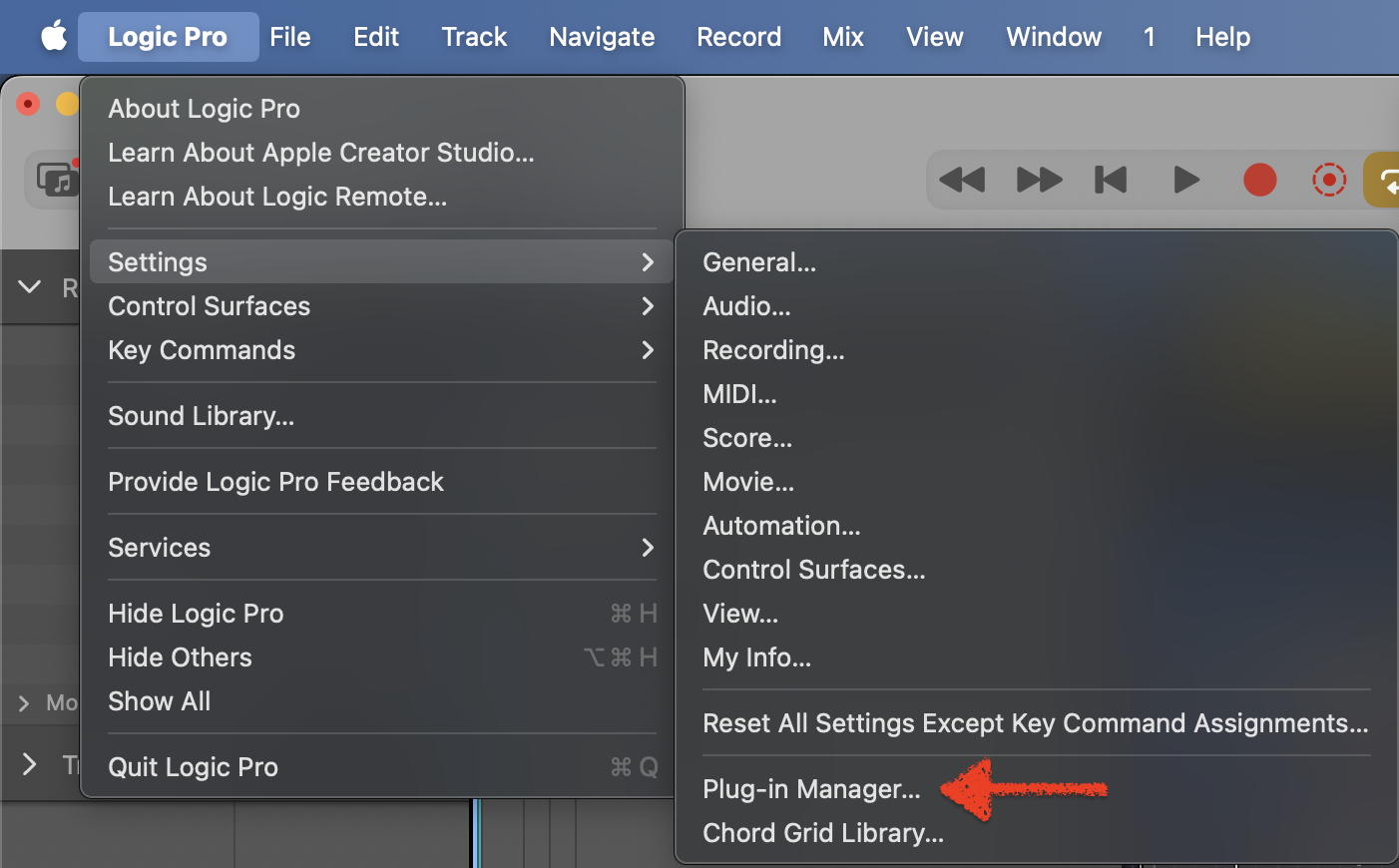
In Logic Pro, go to Logic Pro → Settings → Plug-in Manager. This is where Logic Pro manages all your Audio Unit plugins.
2Verify Betty Sensor is Registered
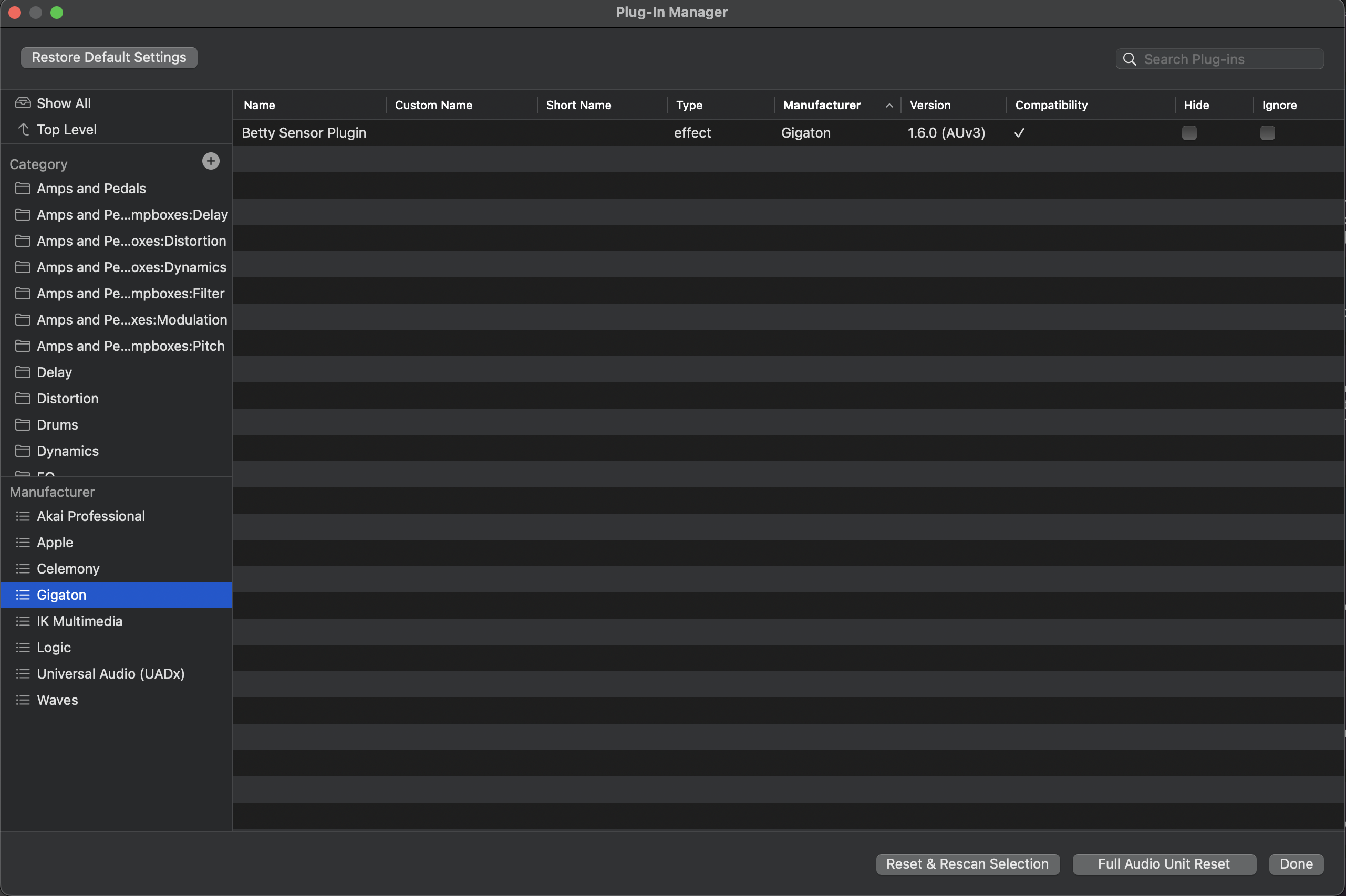
In the Plug-in Manager, look for Gigaton in the Manufacturer list on the left. Click it to see Betty Sensor Plugin listed with a checkmark under Compatibility.
💡 Note: If you don't see Gigaton in the list, make sure you've launched Producer Betty at least once. The plugin is registered when the app first runs.
3Rescan if Needed
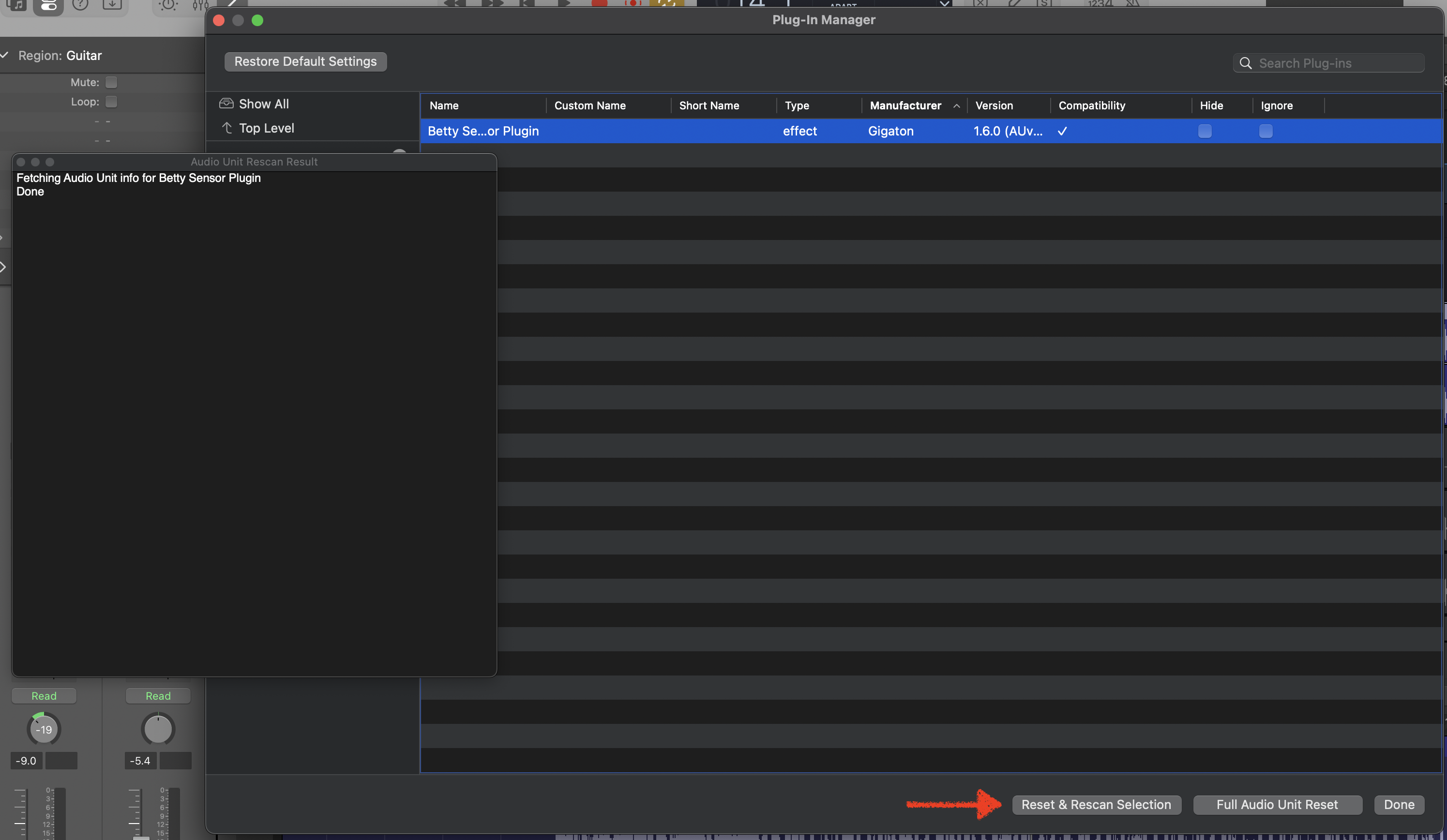
If Betty Sensor doesn't appear or shows a compatibility issue, select Gigaton in the manufacturer list and click Reset & Rescan Selection at the bottom of the window. This forces Logic Pro to re-validate the plugin.
Adding Betty Sensor to a Track
Once the plugin is registered, you can add it to any track you want Betty to monitor.
4Add Betty Sensor via Audio FX
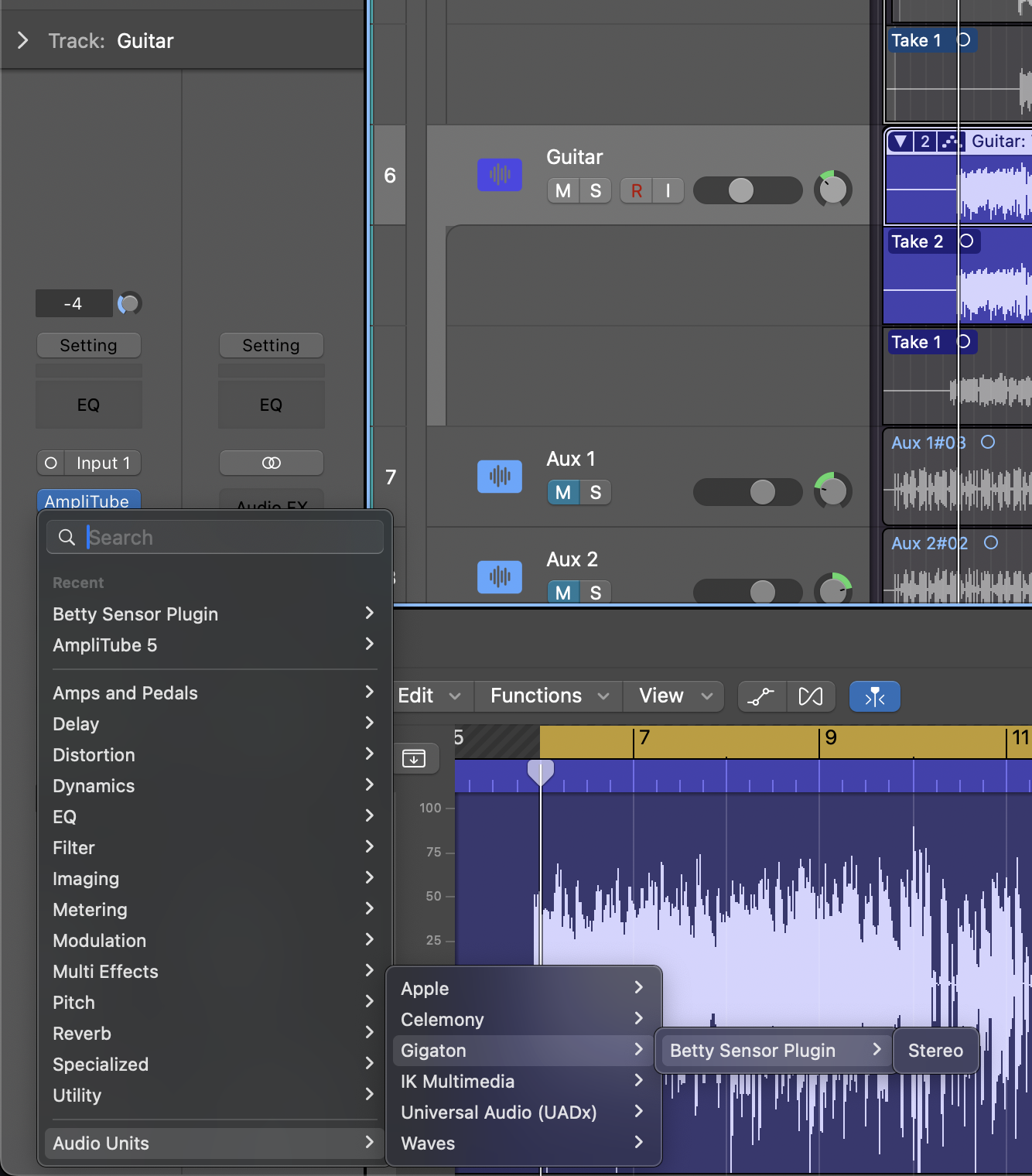
Select the track you want Betty to monitor. In the channel strip, click on an empty Audio FX slot to open the plugin menu. Navigate to Audio Units → Gigaton → Betty Sensor Plugin and click to add it.
5View the Sensor Plugin Window
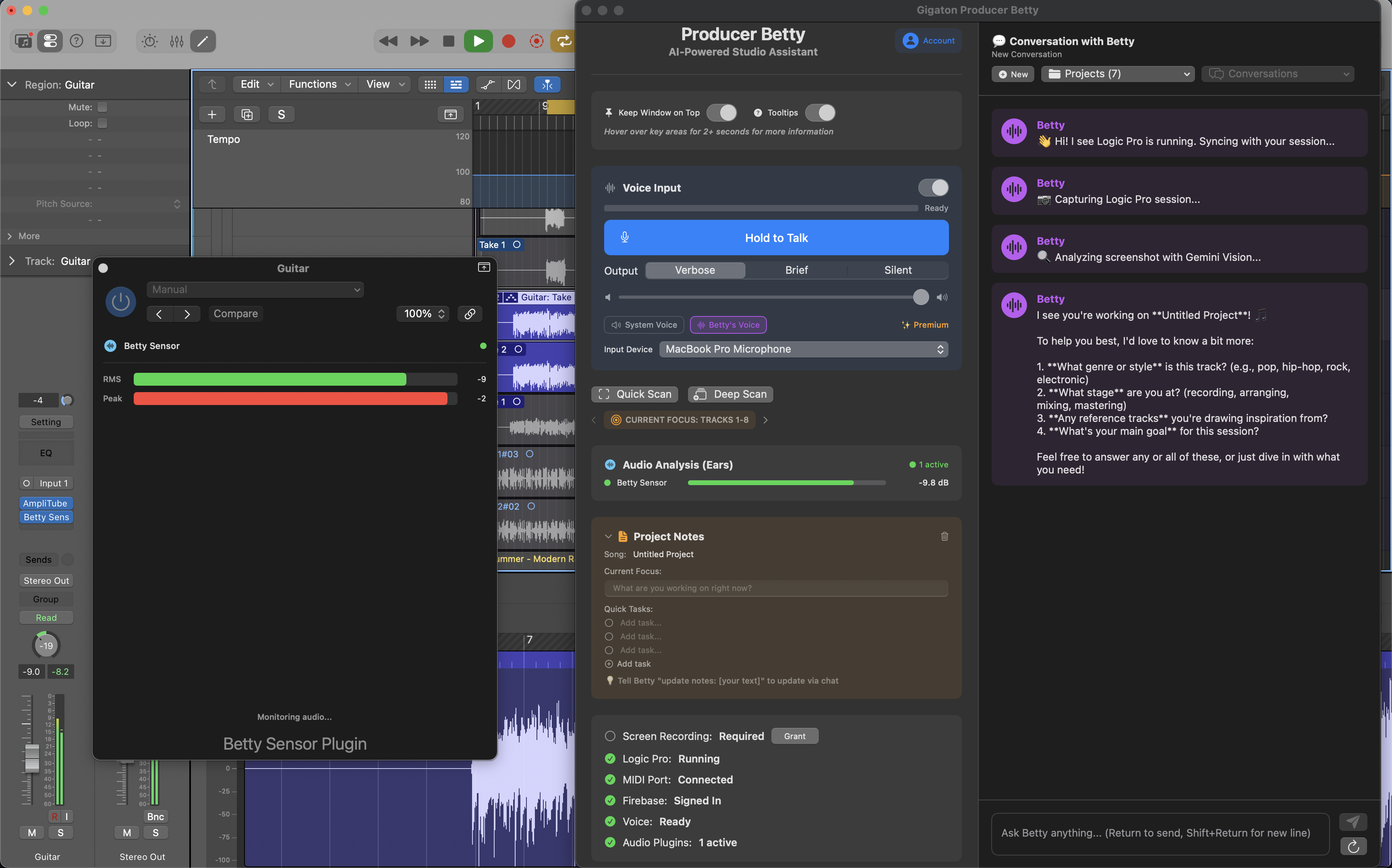
Once added, the Betty Sensor plugin window opens. You'll see real-time RMS and Peak meters. Play audio through the track to see the levels update in real-time.
The plugin is transparent—it monitors audio passing through without affecting the sound. Place it anywhere in your plugin chain, though last in the chain gives you the most accurate picture of what's leaving the track.
6Verify Connection in Producer Betty
In Producer Betty's main window, look for the Audio Analysis (Ears) section. When Betty Sensor is connected, you'll see:
- •"1 active" (or more) with a green indicator
- •The track name (e.g., "Betty Sensor") with real-time dB level
- •Session stats showing peak levels and clip count
Best Practices
🎚️Where to Add Betty Sensor
- • Master Bus — Monitor overall mix levels
- • Submixes — Track drum bus, vocal bus, etc.
- • Key Tracks — Lead vocal, kick, bass for focused monitoring
⚡Performance Tips
- • Betty Sensor has minimal CPU impact
- • Data is sent once per second to avoid overhead
- • You can add multiple sensors to different tracks
Troubleshooting
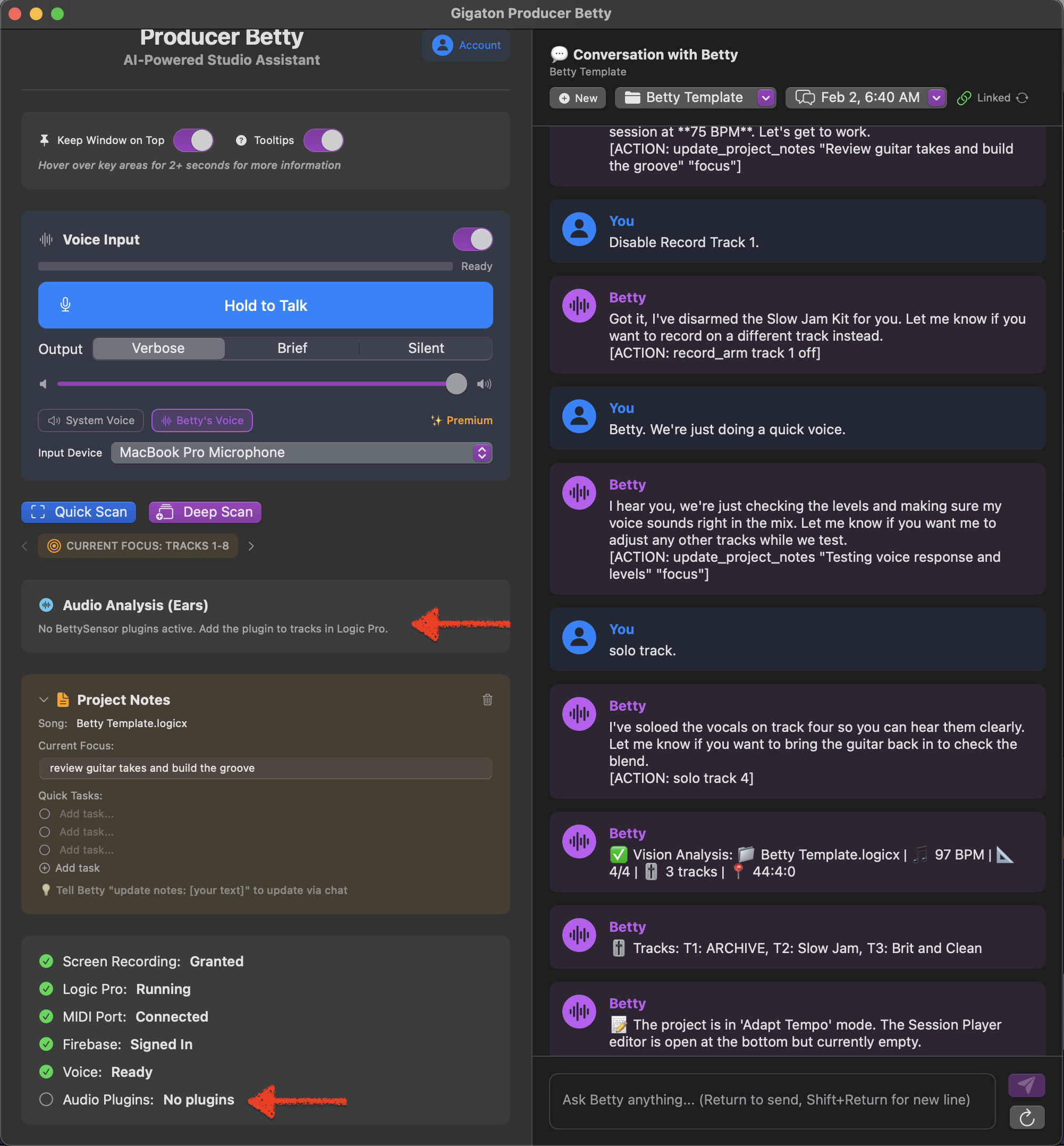
"Audio Plugins: Listening" but not connecting?
If Betty shows "Listening" but never shows "1 active":
- • Make sure audio is playing through the track with Betty Sensor
- • Try removing and re-adding the plugin
- • Restart Logic Pro to reload the plugin
Can't find Betty Sensor in the plugin menu?
Follow the First-Time Setup steps above to verify the plugin is registered in Logic Pro's Plug-in Manager.
Logic Pro shows "Audio Unit reported a problem"?
Click Recover to continue. This can happen when updating Producer Betty. The plugin will work normally after recovery.
🔮 What's Coming Next
Real-time level monitoring is just the foundation. We're working on expanding Betty's audio awareness:
- •Frequency spectrum analysis
- •Dynamics and transient detection
- •Automatic gain staging suggestions
- •Mix balance recommendations based on what Betty hears