Connect Betty to Your Faders
This is the most important setup step. Once configured, Betty can select tracks, adjust volumes, mute, solo, and more—all hands-free.
⚠️Without this setup, Betty can't move your faders
If you skip this step, Betty can still answer questions and see your session, but she won't be able to control tracks. This 2-minute setup unlocks full DAW control.
Watch: Mackie Control setup walkthrough
📋 Quick Setup (One-Sheet)
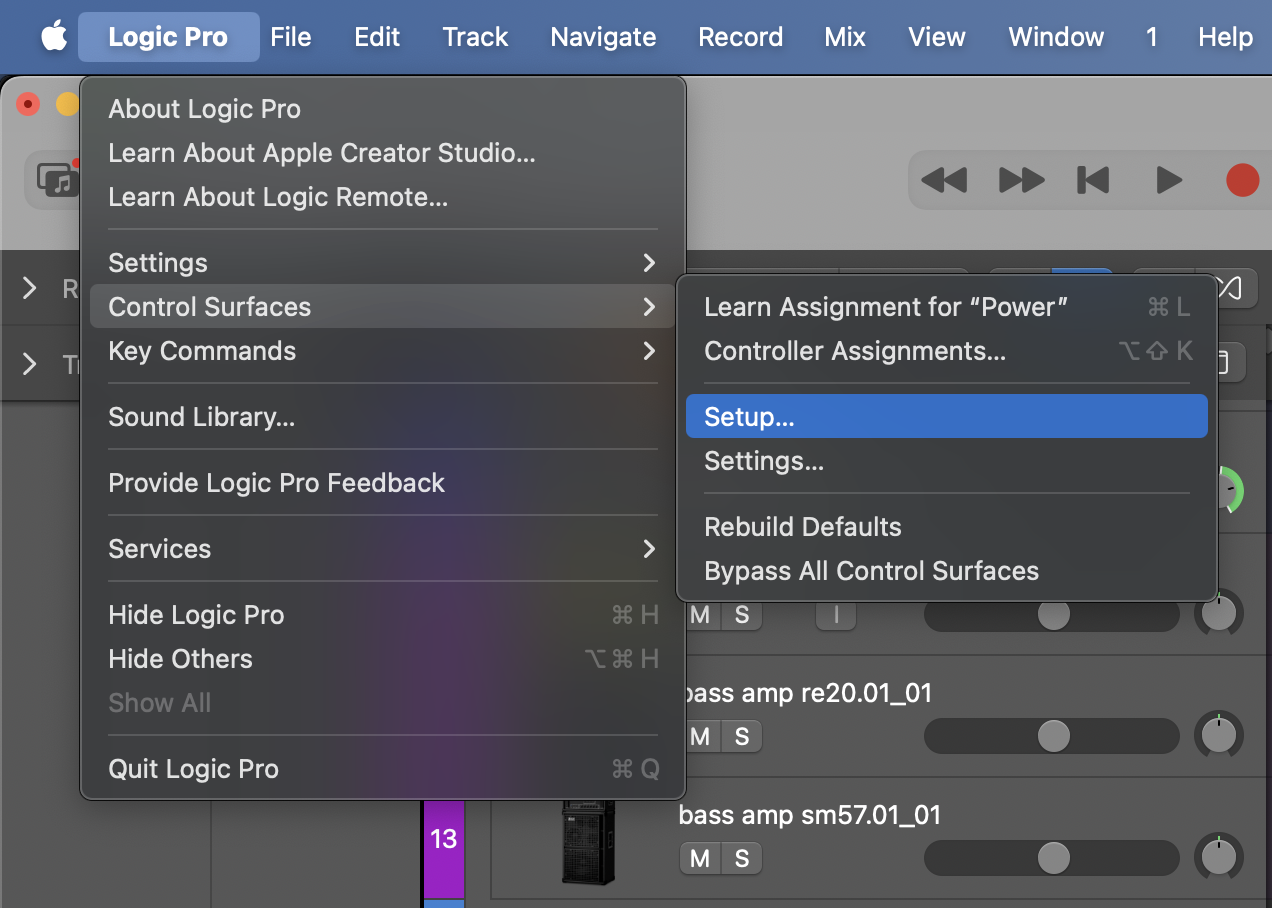
- 1In Logic Pro, go to Logic Pro → Control Surfaces → Setup...
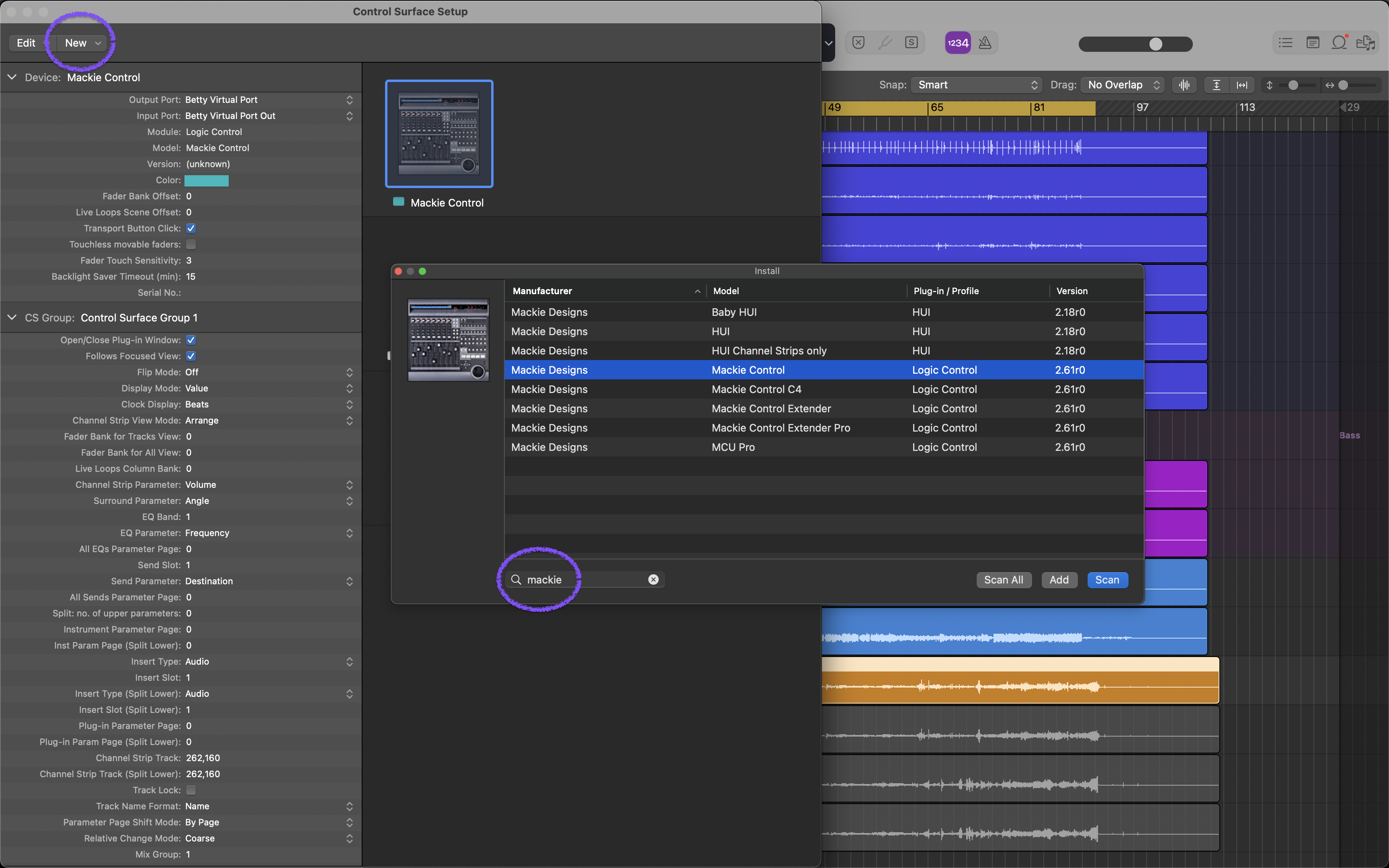
- 2Click New → Install...
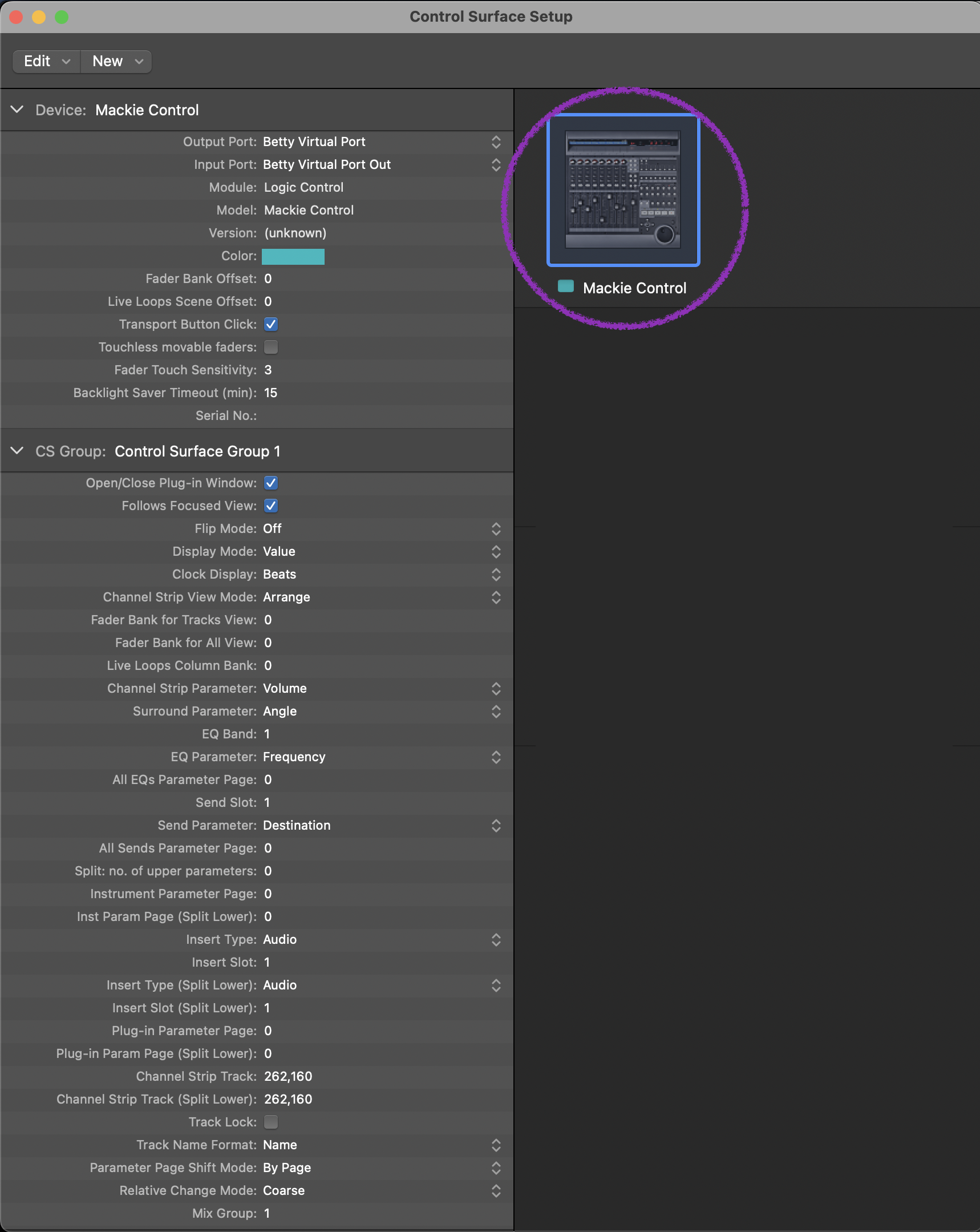
- 3Select Mackie Control from the list
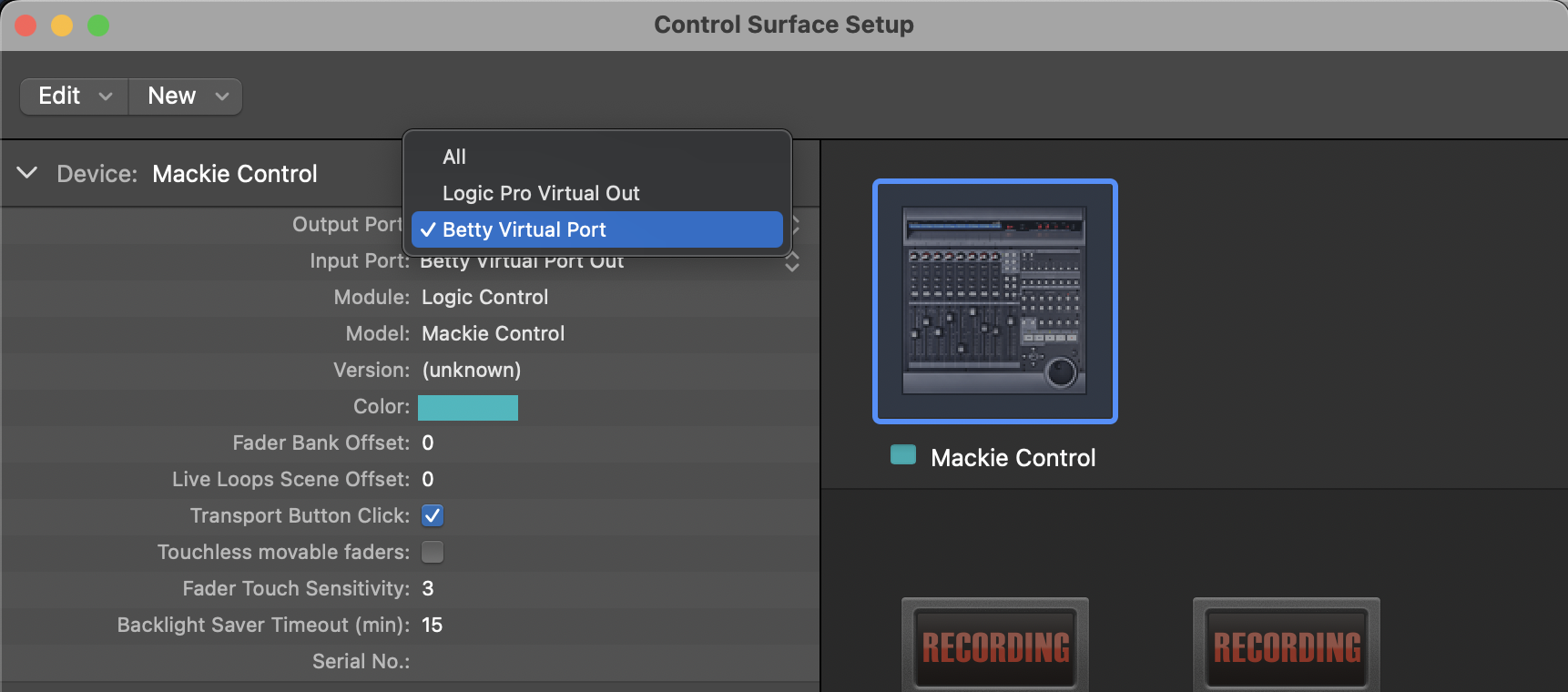
- 4Set Input to Betty Virtual Port
- 5Set Output to Betty Virtual Port Out
- 6Close the window. Done!
Detailed Walkthrough
1Open Control Surfaces Setup
In Logic Pro's menu bar, navigate to Logic Pro → Control Surfaces → Setup...
2Add New Control Surface
In the Control Surfaces Setup window, click New in the top left, then select Install...
3Select Mackie Control
Scroll through the list and select Mackie Control. Click Add.
4Configure MIDI Ports
This is the critical step. Select the Mackie Control device and configure:
- •Input: Betty Virtual Port
- •Output: Betty Virtual Port Out
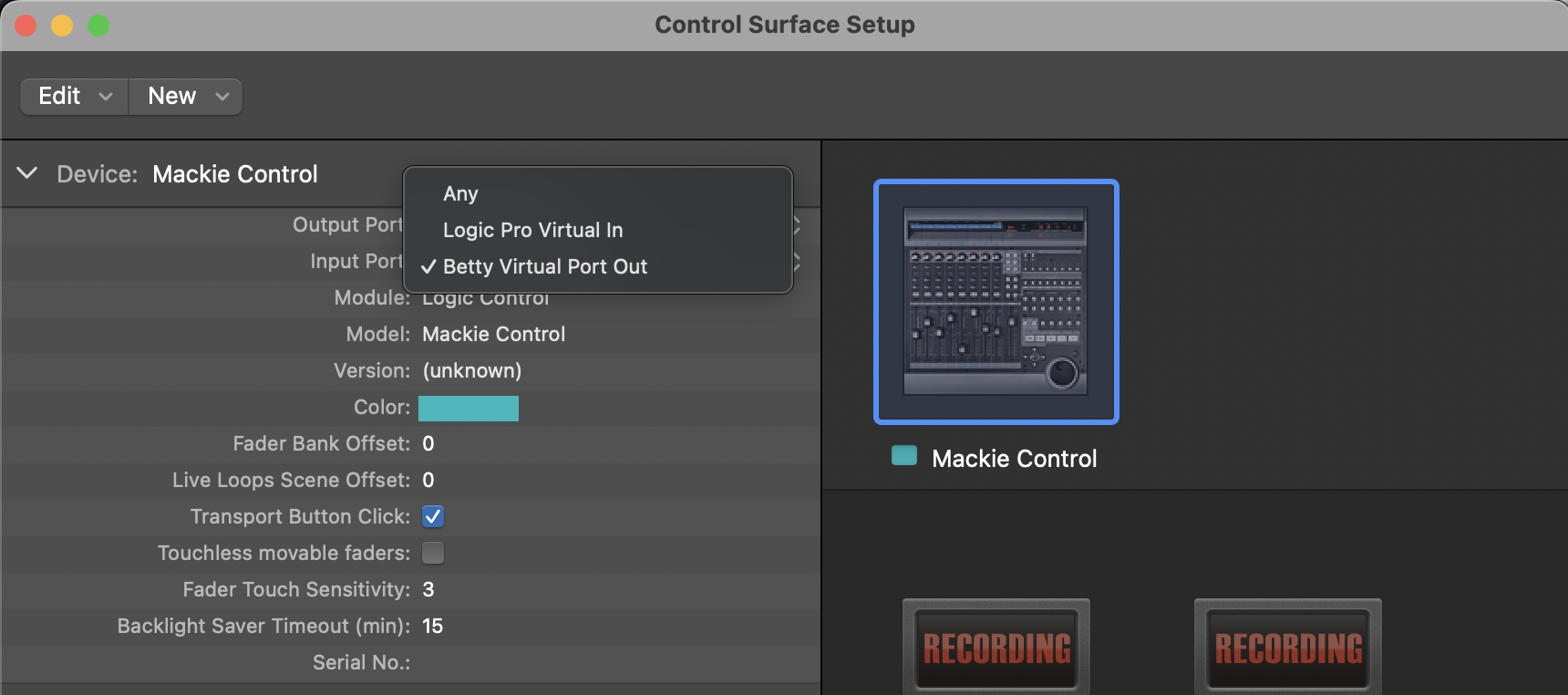
5Verify Connection
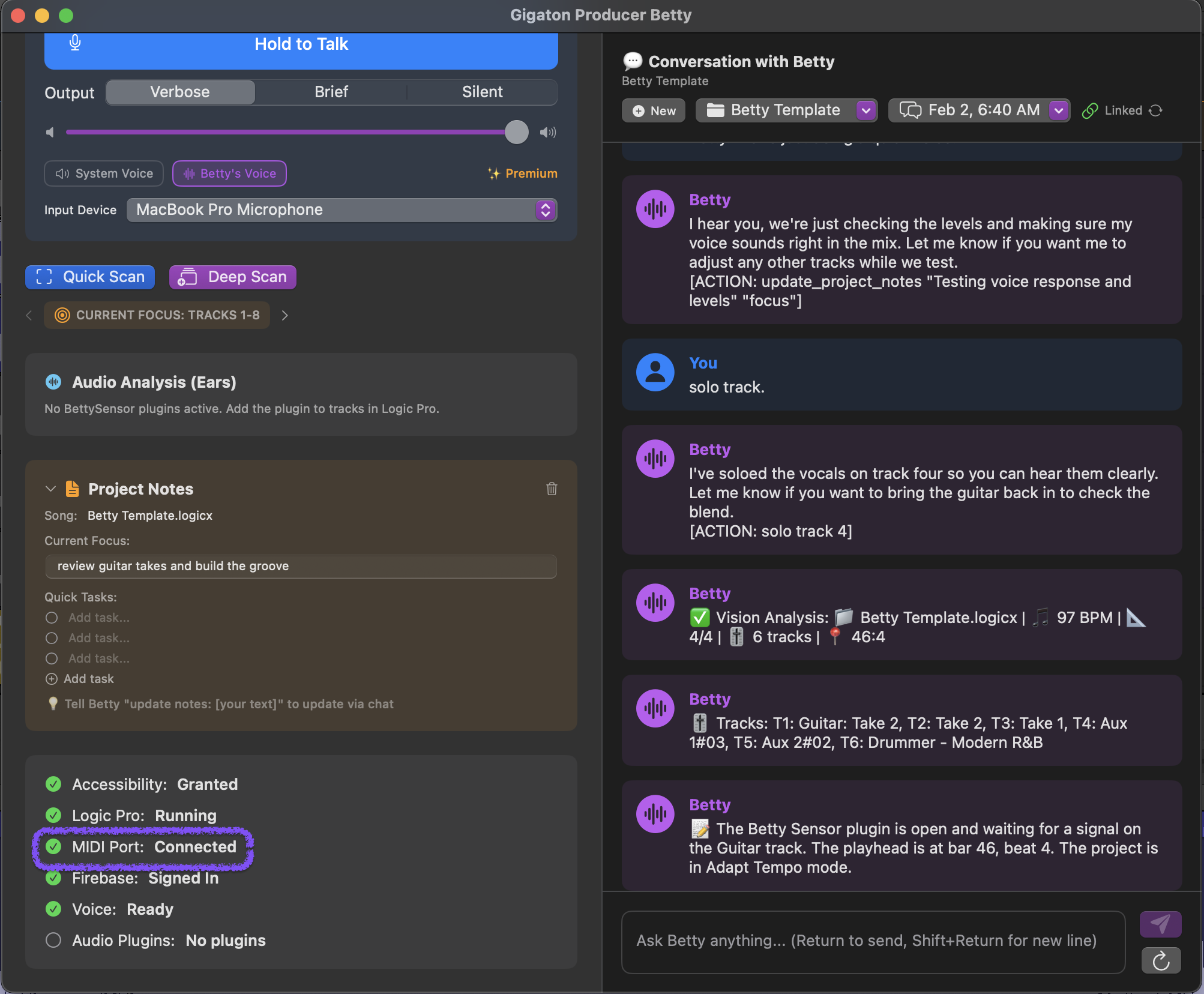
Close the Control Surfaces window. In Producer Betty, you should see "Connected" status. Try saying "Select track 1" to test.
Troubleshooting
"Betty Virtual Port" doesn't appear in the list
Make sure Producer Betty is running before opening Logic Pro's Control Surfaces Setup. Betty creates the virtual MIDI ports when it launches.
Betty says "Connected" but faders don't move
Double-check that both Input AND Output are set to Betty's ports. If only one is set, commands won't work properly.
Wrong track gets selected
Run a Deep Scan to recalibrate Betty's track mapping. This syncs Betty's track list with Logic Pro's actual track order.
✅ What You Can Do Now
With Mackie Control connected, try these commands:
- "Select track 3"
- "Mute the drums"
- "Solo the bass"
- "Set track 5 volume to -6dB"
- "Pan the guitar left"
- "Play" / "Stop" / "Record"